SQL Playground
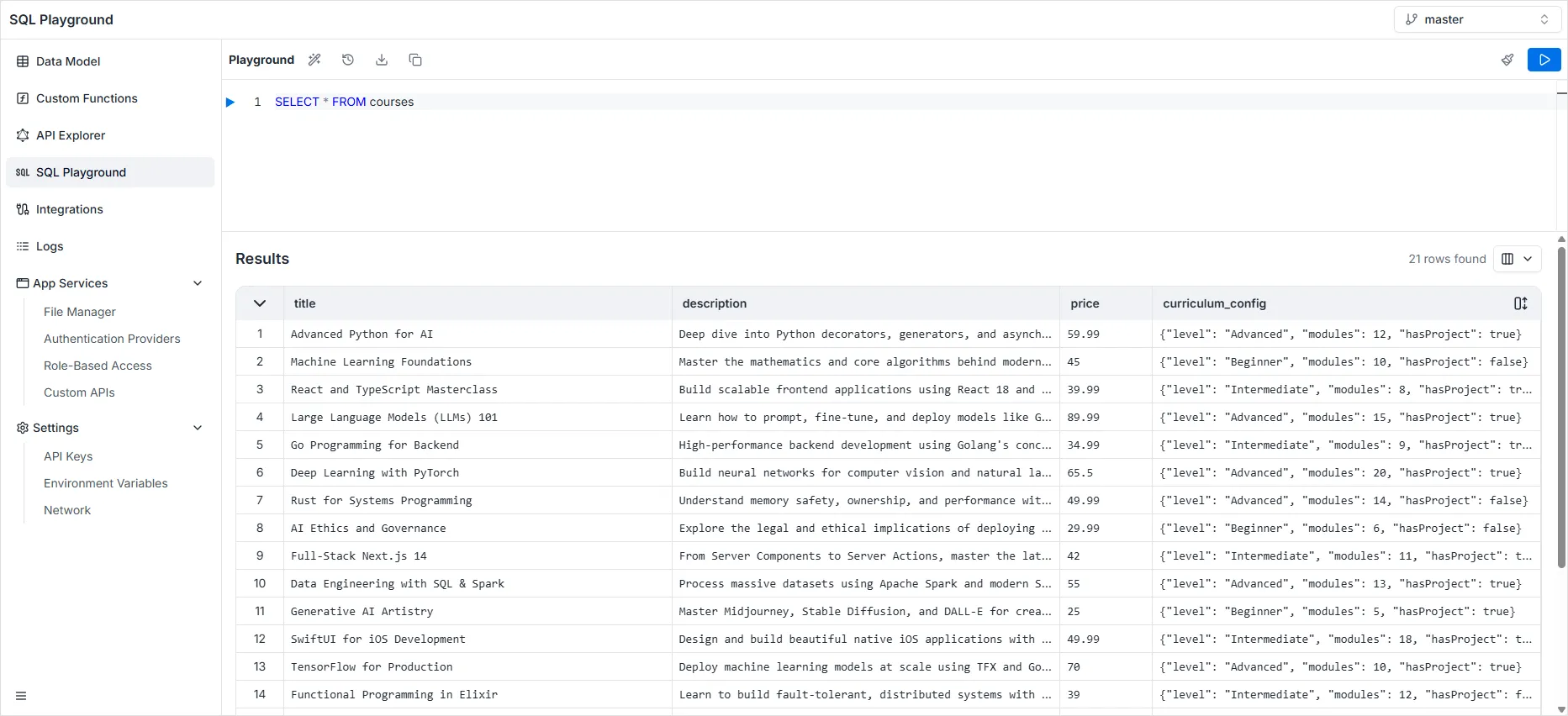
The SQL Playground is a dedicated environment for writing and executing raw SQL queries directly against your database tables.
To access this tool, select SQL Playground from the left-hand sidebar menu.
Query Editor
Section titled “Query Editor”The main “Playground” area allows you to write standard SQL statements. You can perform simple SELECT queries or complex JOIN operations (e.g., linking students with cities).
Execution Methods
Section titled “Execution Methods”There are multiple ways to execute your code, giving you flexibility depending on your workflow:
-
Line Execution: Click the Blue Play Triangle located in the gutter next to a specific line number to run just that statement.
-
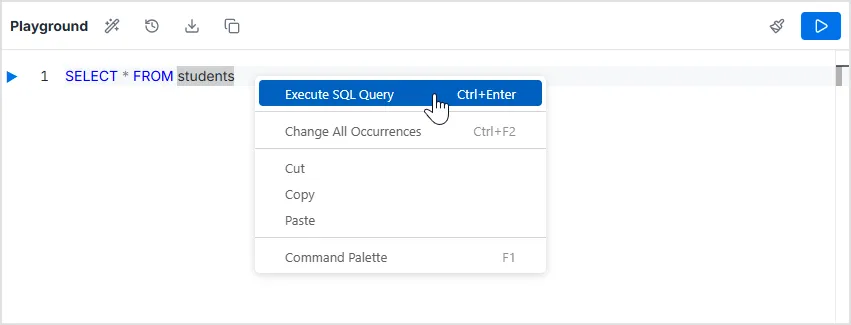
Context Menu (Right-Click): Right-click anywhere in the editor to open a menu where you can select Execute SQL Query
-
Keyboard Shortcut: Press
Ctrl + Enterto execute the query immediately without using the mouse.
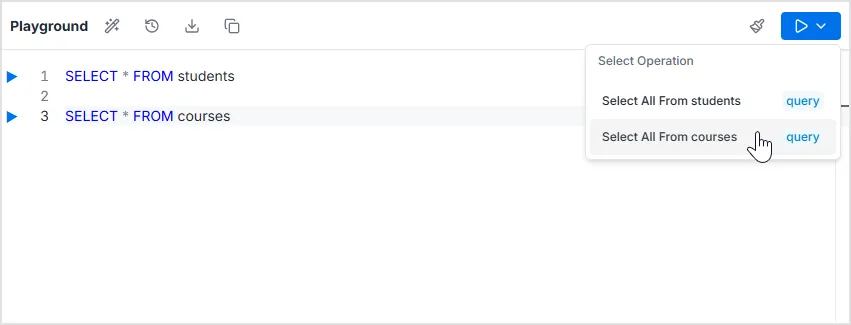
- Operations Panel: Click the large Run button located in the top-right corner, a “Select Operation” panel lists suggested or context-aware queries (e.g., “Select All From students”).
Toolbar Actions
Section titled “Toolbar Actions”The toolbar at the top of the editor provides tools to manage your code:

-
Format SQL: Use the Magic Wand icon to automatically format and indent your SQL code for better readability.
-
Query History: Access a log of your previously executed queries.
-
Download SQL: Download the current queries to your local machine.
-
Copy SQL: Use the Copy icon to copy the editor’s content to your clipboard.
-
Clear Editor: Use the Broom icon to clear or delete all queries from the editor.
Results Panel
Section titled “Results Panel”The Results section at the bottom displays the output of your execution.
- Data Grid: The data is presented in a table format with columns corresponding to your query (e.g.,
first_name,age,name_city). - Row Count: The total number of records returned is displayed in the top right (e.g., “9 rows found”).
- Column Visibility: You can customize the view by clicking the column selector icon in the results header to toggle specific columns on or off.